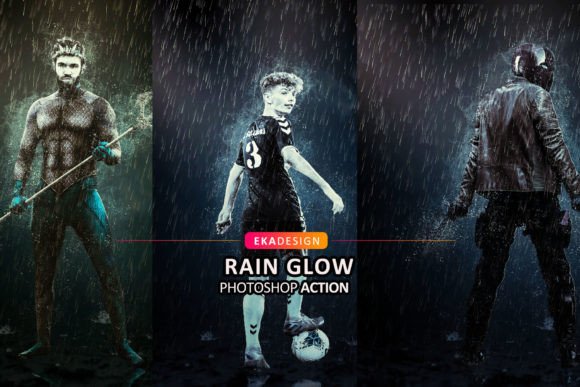
Rain Glow Photoshop Action: Transforming Photos with Atmospheric Depth
There is a distinct mood that rain brings to photography. It softens harsh lights, creates reflective surfaces on pavement, and adds a layer of emotional depth that clear skies simply cannot replicate. However, capturing the perfect rainy scene in real life is notoriously difficult. You are at the mercy of the weather, your equipment needs extensive waterproofing, and lighting conditions often become unpredictable. This is where the Rain Glow Photoshop Action becomes an invaluable tool for digital artists, photographers, and designers who want to evoke that specific atmospheric tension without waiting for a storm.
This tool is not just about slapping a generic overlay onto an image. It is designed to create highly detailed effects from your photos with just a few clicks, simulating the way light interacts with water droplets and wet surfaces. For professionals working under tight deadlines, this action saves a significant amount of work per photo, turning what could be hours of manual brushwork and layer masking into a streamlined, repeatable process.
Bridging the Gap Between Concept and Reality
In the world of commercial photography and digital art, clients often request specific moods that are impractical to shoot on location. Imagine a fashion photographer working on a campaign for a raincoat brand during a heatwave. Instead of postponing the shoot or renting expensive water trucks, they can capture the model in a studio with controlled lighting and apply the Rain Glow Photoshop Action in post-production. The result is a convincing, high-end editorial look that feels organic rather than forced.
The utility extends beyond fashion. Consider the automotive industry. Car manufacturers and dealerships frequently need images of vehicles that look sleek, powerful, and dramatic. Wet cars reflect their surroundings more vividly, highlighting curves and design lines. By using this action, a retoucher can take a standard showroom photo and transform it into a moody, cinematic shot that suggests performance and resilience against the elements. The key here is the "glow" aspect; it doesn't just add rain; it enhances the light sources, creating those beautiful bokeh effects and halos that occur when streetlights hit raindrops.
Who Benefits Most from This Workflow?
While any Photoshop user can benefit from automation, certain groups will find the Rain Glow Photoshop Action particularly transformative for their workflow.
- Digital Artists and Concept Designers: When creating environment concepts for games or films, establishing atmosphere is crucial. This action allows artists to quickly iterate through different weather conditions, helping them decide whether a scene works better in a drizzle or a downpour without repainting the entire background.
- Social Media Content Creators: In the fast-paced world of Instagram and Pinterest, aesthetic consistency drives engagement. Creators who focus on moody, urban, or cyberpunk aesthetics can use this action to maintain a cohesive visual style across their feed, even if their source photos were taken on sunny days.
- Wedding and Portrait Photographers: Sometimes, a couple wants a dramatic, romantic vibe that mimics classic cinema. If it didn't rain on their wedding day, this tool offers a subtle way to add that emotional weight to their portraits, provided it is applied with a light touch.
Technical Compatibility and Language Requirements
One of the strongest advantages of this tool is its broad compatibility. It supports a wide range of Adobe Photoshop versions, including CS4, CS5, CS6, CC, CC2014, CC2015, CC2017, CC2018, CC2020, and CC2021. This ensures that users with older hardware or those who prefer stable, legacy versions of the software are not left behind. Whether you are running the latest Creative Cloud subscription or relying on a perpetual license from several years ago, the action is designed to integrate seamlessly.
However, there is a critical technical constraint to be aware of: the Rain Glow Photoshop Action requires the English version of Photoshop to function correctly. This is a common limitation with many complex actions, as they rely on specific layer names and menu commands that vary across localized versions of the software. If your current installation is in Spanish, German, Japanese, or any other language, the action may fail to execute properly.
Fortunately, this is not a permanent barrier. Switching your Photoshop interface to English is a straightforward process that does not require reinstalling the entire application. Users can adjust the language preferences within the Creative Cloud desktop app or by modifying configuration files, depending on their version. A quick search for a video tutorial on changing the Photoshop language to English will provide step-by-step guidance. Once switched, the action will recognize the necessary commands and run smoothly.
Optimizing Your Input for Best Results
Automation tools are only as good as the source material they are given. To get the best possible outcome out of the Rain Glow Photoshop Action, input quality is paramount. Using low-resolution images or heavily compressed JPEGs will result in pixelated rain effects and unnatural artifacts. The recommendation is to use high-resolution images, ideally with a resolution of 2500px by 3500px pixels at 300 dpi.
Portrait-oriented images with solid color objects tend to yield the most striking results. Why? Because the contrast between the subject and the background allows the rain and glow effects to stand out clearly. If the background is too cluttered or noisy, the subtle details of the rain droplets may get lost. A clean, well-lit subject provides the perfect canvas for the action to add its magical touch. Think of a person standing against a dark brick wall or a single flower against a blurred green backdrop. These scenarios allow the light refraction and droplet details to shine.
Non-Destructive Editing and Layer Organization
A major pain point with many Photoshop actions is that they flatten the image or create a messy web of unlabelled layers, making further editing a nightmare. The Rain Glow Photoshop Action addresses this by prioritizing layer organization. When the action runs, it keeps all elements neatly grouped and labeled. This non-destructive approach is vital for professional workflows.
Because the layers are organized, you can easily tweak the intensity of the rain, adjust the opacity of the glow, or change the blending modes of specific elements. Perhaps the rain is too heavy for your taste, or the glow is overpowering the subject's face. With well-structured layers, you can mask out specific areas or lower the opacity of individual components without affecting the rest of the image. This flexibility allows for deep customization, ensuring that the final output looks tailored to the specific photo rather than like a preset filter.
What Is Included in the Package?
When you acquire this tool, you are getting more than just the action file. The package includes several assets designed to enhance the realism and versatility of the effect:
- Brushes (ABR): Custom brushes that allow you to manually paint in additional droplets or mist where the automatic action might miss specific details.
- Action (ATN): The core file that automates the creation of the rain and glow effects.
- Pattern (PAT): Seamless patterns that can be used to add texture to backgrounds or enhance the wet look on surfaces.
- Help File (Notepad): A simple text guide containing instructions and tips for installation and usage.
It is important to note that preview images and mockups are not included in the download. These are typically used for marketing purposes and are not part of the functional toolset. The focus here is strictly on the assets you need to create the effect yourself.
Final Thoughts on Atmospheric Enhancement
The Rain Glow Photoshop Action is more than a shortcut; it is a creative enabler. It allows photographers and designers to explore moody, atmospheric narratives without being constrained by physical reality. By understanding its requirements—such as using high-resolution inputs and ensuring an English language interface—users can unlock its full potential. Whether you are refining a commercial advertisement or adding emotional depth to a personal project, this tool offers a reliable, efficient way to bring the beauty of the rain into your digital workspace.